iTerm2 Configuration and Feature Notes
Configuration notes for iTerm2 word-wise navigation, text selection, autocomplete, clipboard history, and related shortcuts.
Configuration
Move the cursor by word
iTerm2 supports this by default, but its shortcuts are not very intuitive: Esc+B moves backward (left), and Esc+F moves forward. I normally add Option+← and Option+→ for these actions.
Open Preferences → Profiles → Keys, find ⌥←, and change it as shown:
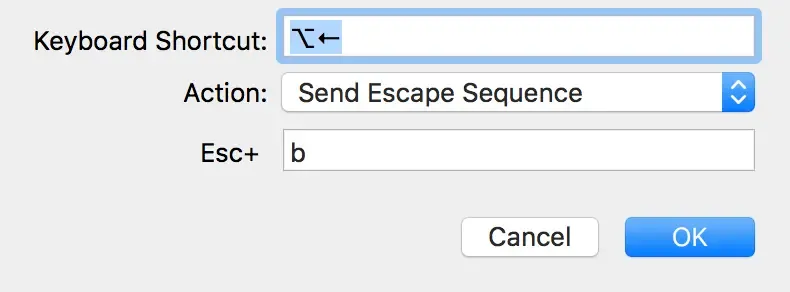
For ⌥→, use f instead of b.
Reuse the previous path
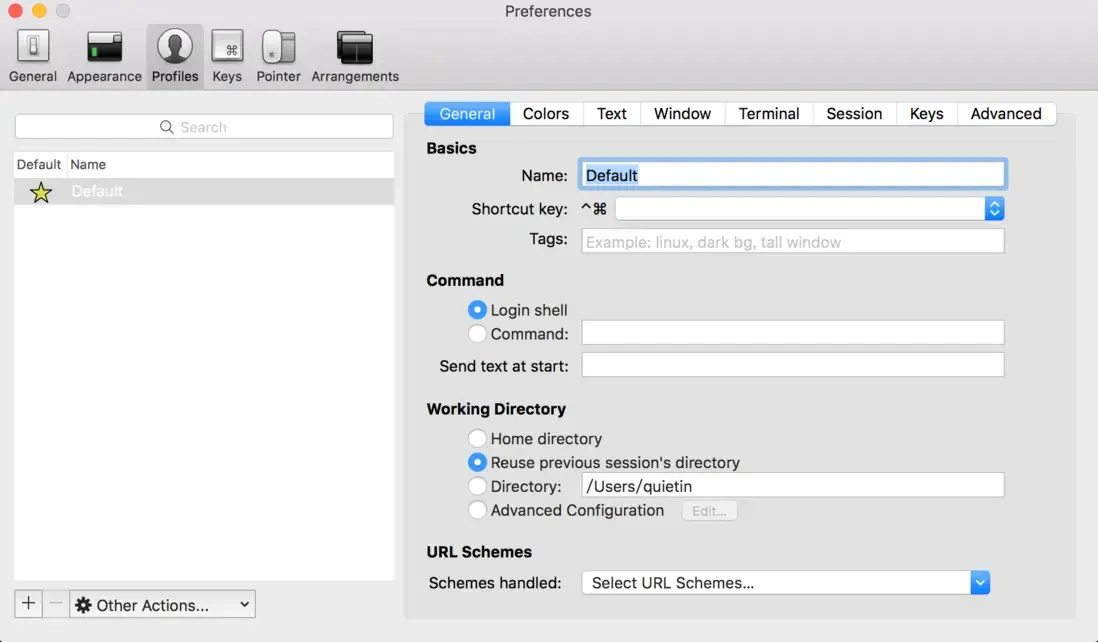
Change the default startup directory from Home directory to Reuse previous session’s directory.
Features
Copy on selection
Text selected with the mouse in iTerm2 is copied to the system clipboard automatically; there is no need to press Command+C.
Autocomplete
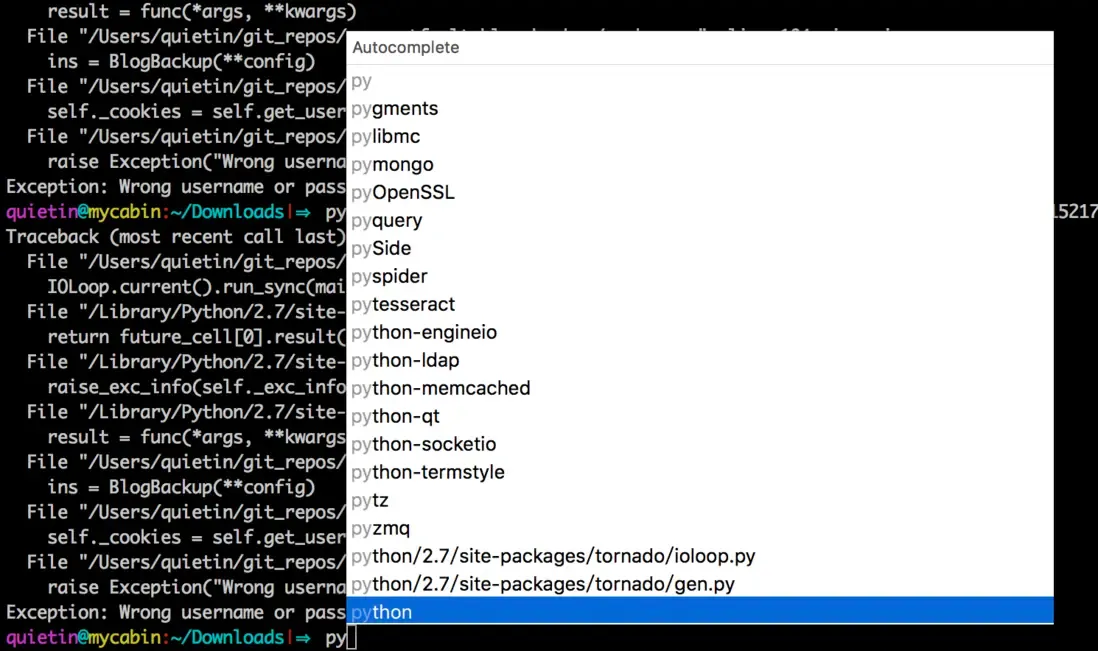
Type the first few letters of a command, then press Command+;. iTerm2 lists similar commands from your history.
Clipboard history
Press Command+Shift+H to list iTerm2’s clipboard history. This covers only copies made in iTerm2, not the system clipboard.
For system-wide clipboard history, you can use Alfred. After installing and enabling it, press Option+Command+C.